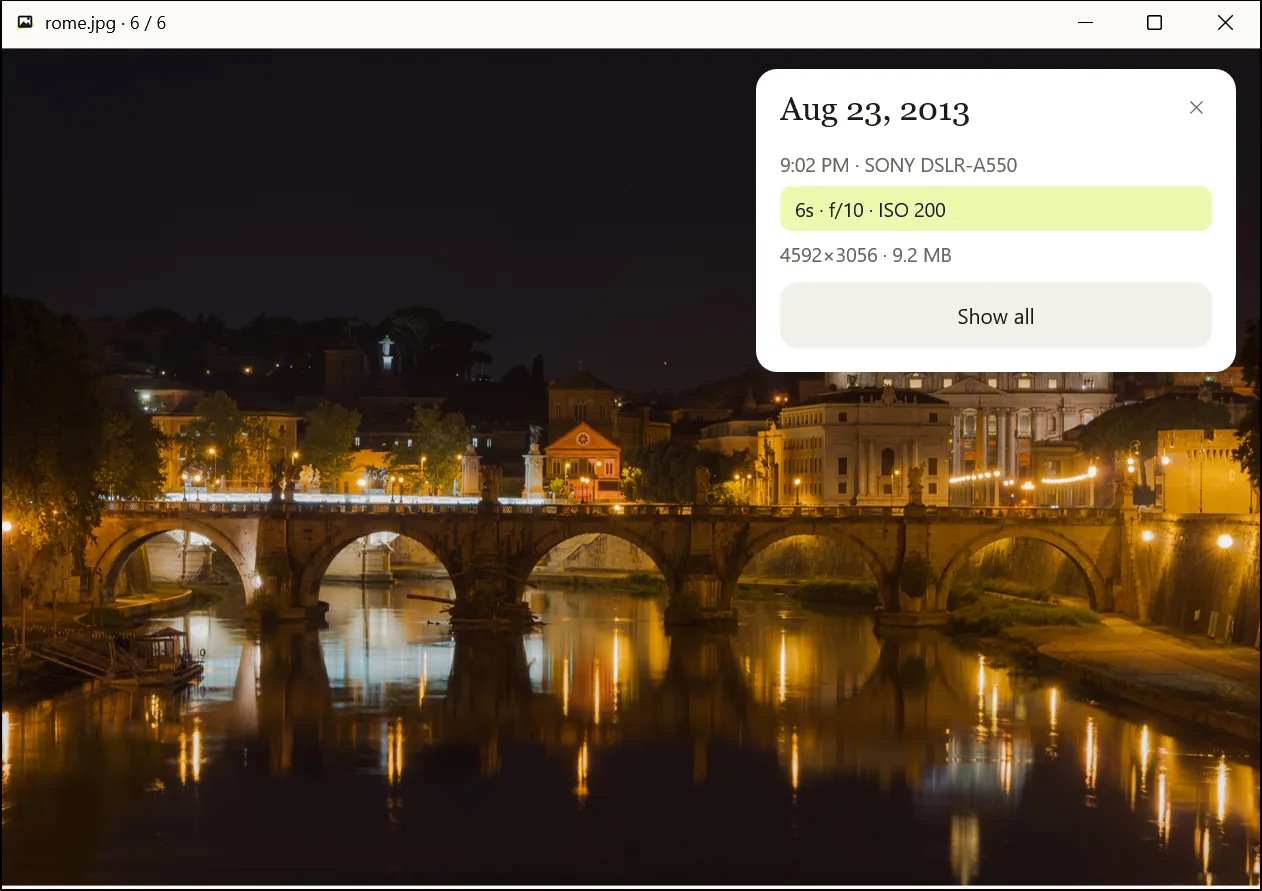
How to remove location data before sharing photos
Phone photos can carry the GPS coordinates of where they were taken. Here is how to remove them with light-view before you share.
What the problem is
Photo files from a phone carry EXIF data, and if location services were on, that includes latitude and longitude. When a photo is sent or uploaded as a file, the coordinates can go with it.
How to remove it
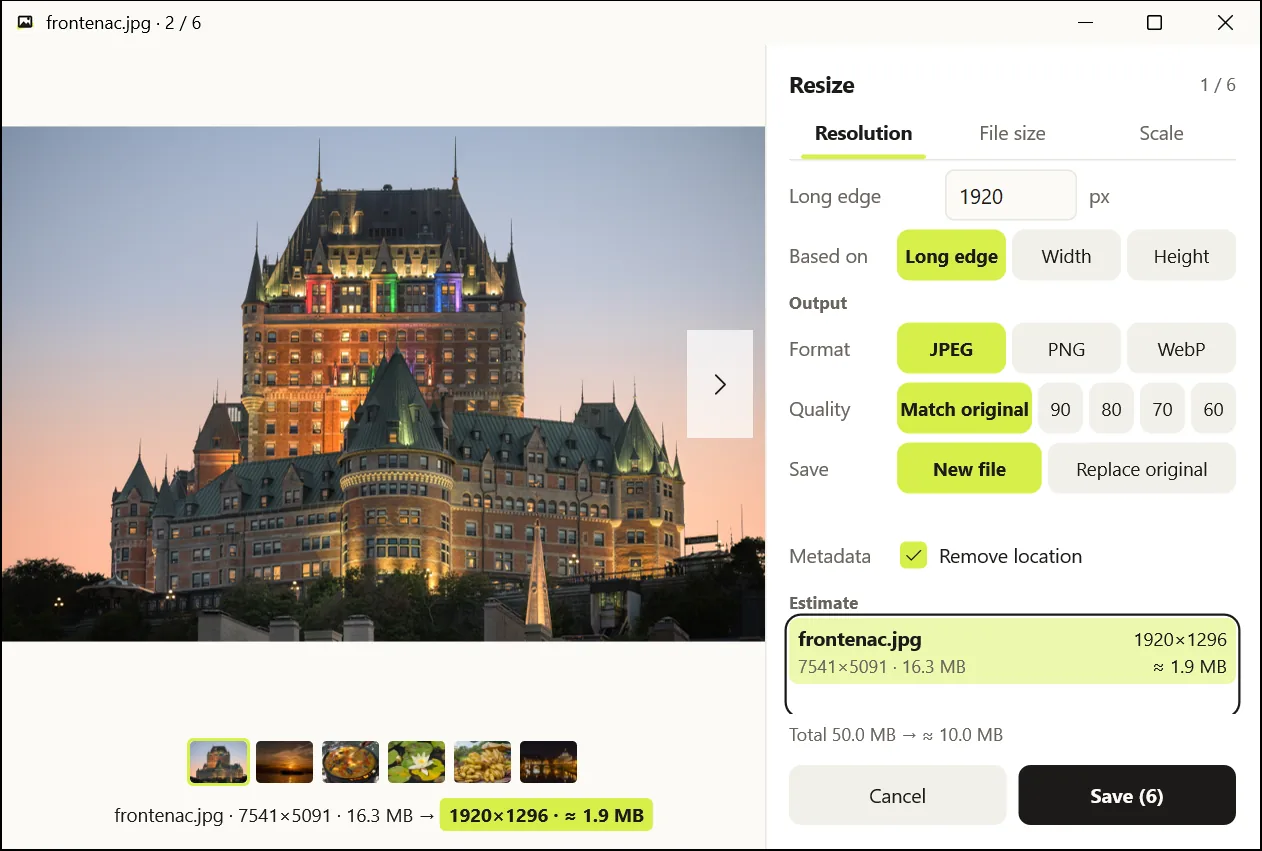
- Open the Resize screen: in the installed copy, select photos in Explorer, right-click → Resize with light-view; in the portable copy, drop photos on the light-view window and choose Resize.
- Check that Remove location under Metadata is ticked. It is on by default.
- To keep the size, enter
100% on the Scale tab, or shrink the photos to suit where they are going. - Press Save. A new file such as
name_small.jpgappears in the same folder; the original stays as it was. - Share the new
_smallfile.
What stays and what goes
What stays is what helps you sort photos:
- the date taken and the time zone
- the camera make and model, and the lens
- exposure time, aperture, ISO and focal length
Location and everything else is left out. The photo is saved upright.
How to check
Open the saved file in light-view and press I for the info card. Show all lists every tag, so you can see that there is no location (GPS) entry.