
How to open HEIC (iPhone photos) on Windows
Open iPhone photos (HEIC, HEIF) with light-view, without the paid HEVC extension.
Why they do not open
iPhones save photos as HEIC. HEIC uses HEVC compression, so to open it in the Windows Photos app you need two Microsoft Store add-ons: "HEIF Image Extensions" and the paid "HEVC Video Extensions".
light-view comes with its own HEIC decoder (libheif, libde265) and opens HEIC and HEIF without them.
With the installer
- Get the installer from Download and run it. For me only (the default) needs no administrator rights.
- On the installer's last page, leave Make light-view the default photo app on and finish. When Windows Settings opens at light-view's page, click Set default at the top once; every supported photo type then opens in light-view. If you skipped that, right-click a photo → Open with → light-view.
- Double-click a HEIC photo and it opens in light-view. ← and → go through the folder; zoom with the wheel or a double-click.
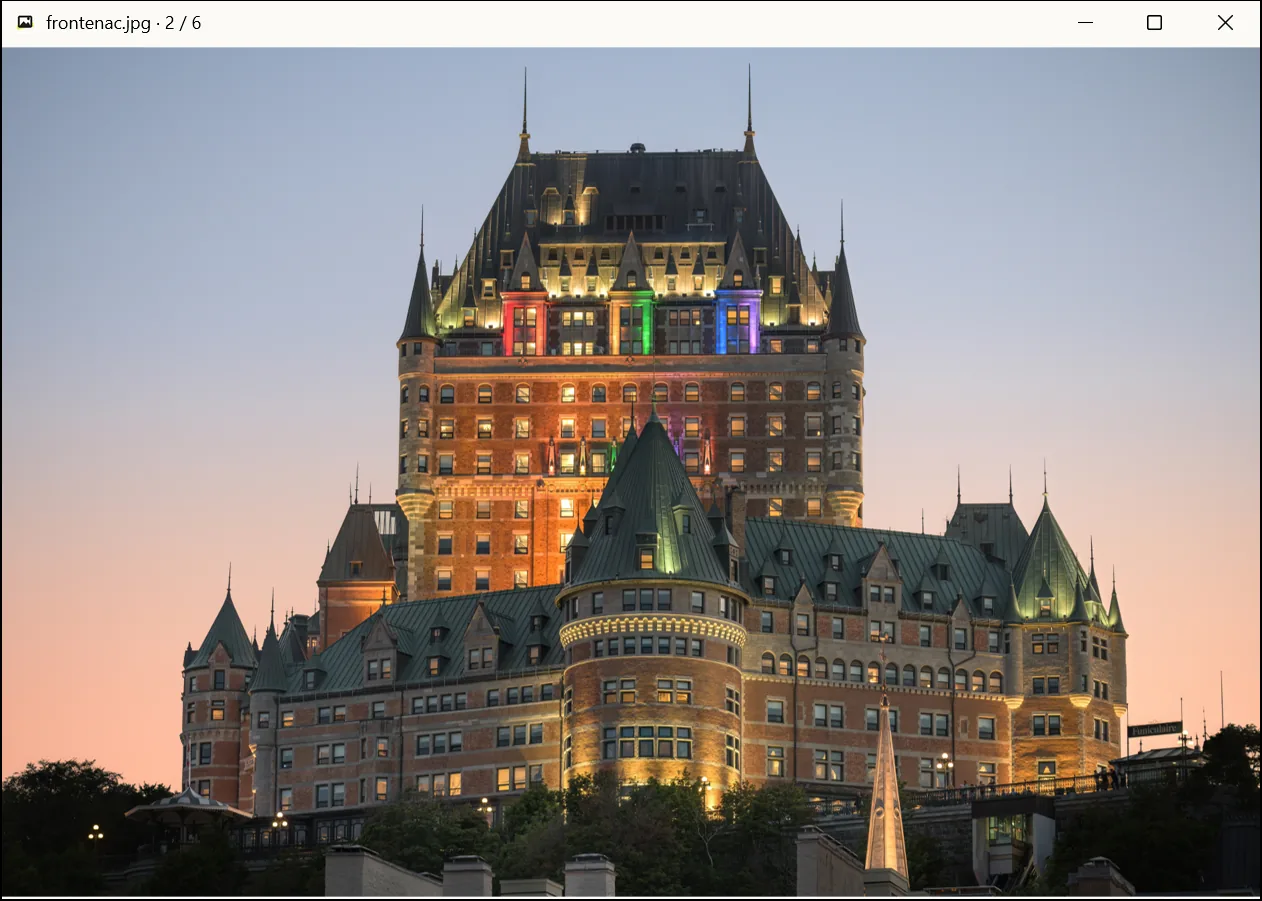
Without installing
Unzip the portable zip into any folder, run light-view.exe and press Ctrl+O to pick a photo. Dropping a photo on light-view.exe opens it too.
Good to know
- Photos are decoded only in a separate worker process with reduced rights, so one bad file cannot put the app at risk.
- If HEIC files show blank icons in Explorer, see HEIC thumbnails missing in Explorer.
- Need JPGs? See How to convert HEIC to JPG.